Controlling External Monitor Brightness on Linux Using Brightness Control Keys
How I built a GNOME Shell extension to control external monitor brightness using brightness controls on keyboard
I recently moved from macOS to Linux. It’s been a mixed experience overall (more on that later) and every now and then you find something that just worked on Mac and doesn’t have a straightforward equivalent on Linux.
Controlling external monitor brightness was one of those things.
The Mac Days
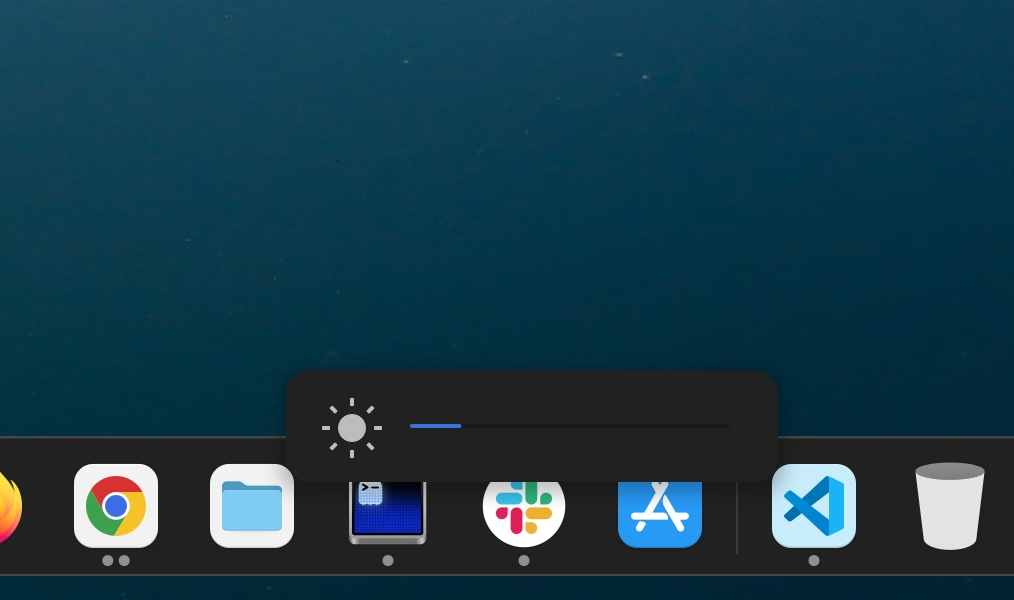
On Mac, I used BetterDisplay. It’s a fantastic tool that lets you control a ton of settings for external displays — resolution scaling, color profiles, and more. But the killer feature for me was being able to control the brightness of my external monitor using the keyboard brightness keys. No reaching for the physical buttons on the monitor. No opening a settings panel. Just press the brightness keys and it works.
I never thought much about it. It was one of those things that felt so natural you forget it’s not a default behavior.
The Linux Situation
On Linux, I quickly realized there’s no equivalent. The brightness keys on the keyboard only control the built-in laptop display. The external monitor? You’re on your own. Open the OSD menu, navigate to brightness, nudge the value. Every. Single. Time.
What I wanted was simple — focus on the display I want to change the brightness on and use the brightness keys on my keyboard. If I’m working on my external monitor, brightness keys should change the external monitor’s brightness. If I’m on the laptop display, the default behavior kicks in. Minimal, but works.
Turns out, that’s easier said than done.
The Exploration
I started exploring this with Claude and we discovered a bunch of tools in the Linux ecosystem.
- ddcutil — A command line tool that communicates with monitors using the DDC/CI protocol over the I2C bus. This is the one that actually lets you set brightness on an external monitor programmatically.
- ddcui — A GUI frontend for ddcutil. Useful for exploring what your monitor supports but not what you’d want for utilizing the brightness control keys.
- brightnessctl — Great for the built-in backlight but doesn’t handle external monitors over DDC.
ddcutil was clearly the tool we needed. Running ddcutil setvcp 10 + 5 bumps your external monitor’s brightness up by 5 (on a 0-100 scale). The challenge was wiring this up to the keyboard brightness keys in a smart way.
Building the Extension
Here’s where things got interesting. You’d think you could just bind the brightness keys to a script and call it a day. Nope.
On GNOME (which is what Ubuntu ships with), a daemon called gsd-power grabs the brightness keys at a very low level — the Mutter accelerator level. Custom keyboard shortcuts simply never see these keys. They’re consumed before they reach your bindings.
So Claude and I went down the GNOME Shell extension route. The idea was to listen for brightness changes via D-Bus and intercept them when the focused window is on the external monitor.
The challenges were… plenty.
- gsd-power’s key grab — Can’t intercept brightness keys via normal means. Had to monitor the D-Bus
PropertiesChangedsignal onorg.gnome.SettingsDaemon.Power.Screeninstead. - I2C bus numbers aren’t stable — The bus number for the external monitor changes across reboots. The extension auto-detects it at startup using
ddcutil detect. - DDC writes are slow — The I2C bus can’t handle rapid-fire commands when you hold down the brightness key. Had to add debouncing (coalesce rapid keypresses into a single write) and serialize DDC commands (one at a time, queued).
- Reverting the built-in backlight — When focus is on the external monitor, gsd-power still changes the laptop’s backlight. The extension intercepts this, reverts the built-in brightness to its previous value, and applies the change to the external monitor via DDC instead.
- The OSD nightmare — gsd-power shows its own brightness OSD on the built-in display. We needed to suppress that and show our own OSD on the correct monitor. This turned out to be the hardest part — gsd-power’s
ShowOSDD-Bus call arrives before ourPropertiesChangedhandler runs, so a timing-based flag didn’t work. The fix was to monkey-patchMain.osdWindowManager.show()to check the focused monitor and icon name directly at call time.
Each one of these took multiple iterations to get right. Claude was instrumental here — not just for writing the code but for quickly iterating through approaches when things didn’t work. The kind of stuff where you change something, log out, log back in, test, find a new issue, and repeat. Having an AI that can reason about GNOME Shell internals, D-Bus protocols, and I2C bus quirks in the same conversation is genuinely useful.
The Result
A GNOME Shell extension called Smart Brightness that does exactly what I wanted.
- Focus on external monitor + press brightness keys = external monitor brightness changes via DDC
- Focus on laptop display + press brightness keys = default behavior, nothing changes
- OSD shows up on the correct monitor
- No extra keybindings, no configuration, no scripts to run
Install It
The extension is available on GitHub — praveenpuglia/smart-brightness-gnome.
git clone https://github.com/praveenpuglia/smart-brightness-gnome.git
cd smart-brightness-gnome
./install.sh
The install script handles everything — installing ddcutil, adding you to the i2c group, disabling the ACPI brightness switch, copying the extension files, and enabling it. You’ll need to log out and back in for it to take effect.
Check the README for requirements, configuration options, and debugging tips.
Caveats
A few things to know.
- Only tested on GNOME 46 (Ubuntu 24.04). Should work on similar versions but GNOME Shell APIs change across releases.
- DDC/CI support depends on your monitor and your GPU’s driver. Most modern monitors support it but some don’t expose the brightness control.
- There’s a slight lag compared to the built-in backlight because DDC writes over I2C are inherently slower. It’s not bad but it’s not instant either.
- Currently handles one external monitor. If you have multiple external displays, it’ll pick the first DDC-capable one it finds.
If you’re on Linux with an external monitor and you’ve been annoyed by this, give it a shot.